

Administration
Day-to-day operation: bring systems under management, vault and rotate their credentials, gate access behind approvals, and review recorded sessions.
- A licensed, signed-in appliance from Get started.
- For directory-based users: a reachable Active Directory / LDAP, added under System Settings → Directory Sources. For standalone use, create local users instead.
- To authorize anyone: at least one Access Group. Users (AD or local) get their rights from group membership, not individually.
- Multi-tenant (MSSP) only: create the Tenant first (Access Management → Tenants); directory sources, users and assets are then scoped to it. Single-tenant deployments use the built-in default tenant.
- For approval and MFA email: an SMTP server under System Settings → Email Settings.
Work top-to-bottom the first time: connect a directory (or plan to use local users), create tenants if you run more than one customer, add and authorize users, wire up email, then onboard systems and put their credentials under management. Sections 1–5 are the identity foundation; 6–9 are day-to-day operation.
1 · Connect a directory (Directory Sources) 
Most deployments authenticate people against an existing directory. Go to System Settings → Directory Sources → Add source and provide:
- Type & endpoint. Active Directory or LDAP, the domain-controller host, and the port, either
389for LDAP or636for LDAPS (use LDAPS in production). - Bind account. A read-only service account as the bind DN, plus its password. Fidwyn only reads the directory; it never writes to it.
- Search scope. The base DN and, optionally, user and group filters so only the intended organizational units are visible.
- Test & save. Run the connection test, then save. Users and groups from the directory are now available to reference when you add users and build access groups.
2 · Create tenants (MSSP) 
A tenant is an isolated customer boundary. If you operate Fidwyn for more than one organization (an MSSP), create the tenant before you scope directories, users and assets to it, under Access Management → Tenants → Create: give it a name and an initial tenant administrator. Directory sources, users, assets and policies are then bound to that tenant and cannot see across the boundary.
3 · Add users (directory or local) 
Under Access Management → Users, add people one of two ways:
- From a directory: import a user or group from a connected Directory Source. Recommended: the joiner-mover-leaver lifecycle then follows your directory automatically.
- Local user, for break-glass or a site with no directory: set a username, email and initial password. Local users live only in Fidwyn.
Set each user's MFA (email one-time code or TOTP) here; approvals and sign-in can require it.
4 · Authorize with Access Groups 
Authorization in Fidwyn is by membership, not by individual grant. A user has no rights until they are in a group. Under Access Management → Access Groups, create a group, attach a role (for example Tenant Admin, Operator, Auditor), add members (local users, directory users, or a whole mapped AD group), and scope it to the assets it may reach. This one screen is where "who can do what, to which systems" is decided.
5 · Configure email (Email Settings) 
Approvals, MFA codes and notifications are delivered by email, so configure it early. Under System Settings → Email Settings, set the SMTP host and port, authentication, the from-address, and TLS, then send a test message. Until email works, approval requests and emailed MFA codes cannot reach their recipients.
6 · Onboard assets (Inventory) 
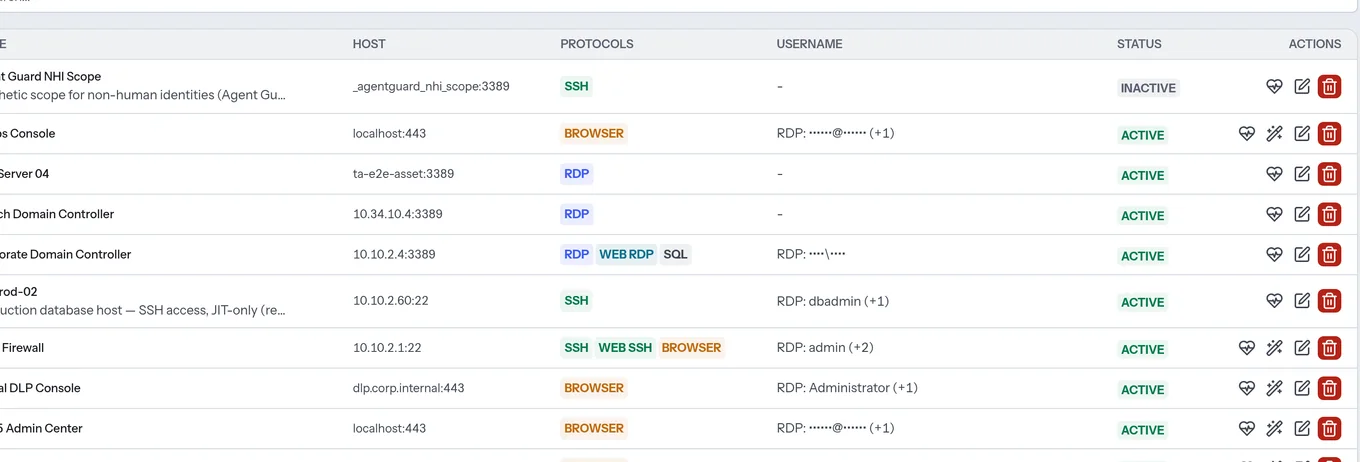
With identity in place, bring systems under management. Add them manually or discover them with Posture Scanning (Network Scan). Each asset carries its type (Windows, Linux/Unix, a database engine, or a web target), connection details, and the credentials it exposes. Discovered accounts can be sent straight into a rotation task.
7 · Vault and rotate (Master Credentials, Rotation) 
- Vault the credential. Store the account under Master Credentials. Access is checkout- and reveal-gated; personal vaults are isolated per user.
- Pick a template. A Secret Template defines what the credential is and how it rotates, so onboarding a new system class is a selection, not a script.
- Schedule rotation. Under Password Rotation, rotate one account or every account of an OS type on an hourly, daily, weekly, or monthly cadence. Credential Heartbeat continuously checks that vaulted passwords still work on the target.
8 · Gate access (JIT Access, Approval Policies) 
Remove standing privilege. A user requests access under JIT Access; an Approval Policy routes it to one or more approvers with backup approvers, a maximum duration, and auto-reject on timeout. On approval the grant is time-boxed and revoked automatically. Connections are launched over RDP, SSH, or the browser, and the credential is injected at the broker and never reaches the operator.
9 · Review sessions (Session Recordings) 
Every privileged session is recorded: SSH and terminal as replayable asciinema, RDP and browser as MP4, with keystroke logs alongside. From Session Recordings an administrator can watch, join, or terminate a live session, and seek a completed one by activity.